Invoices
Raise it, send it, and know when it's been paid
Invoices lives in the same place as your team and your work, so the job you just finished becomes a bill without retyping a thing. Build the line items, add your rates, and send a clean PDF from wherever you are.
Every invoice keeps its own status — draft, sent, paid, overdue — so you can see at a glance what's still owed instead of scrolling back through your email.

Build an invoice from what you already have
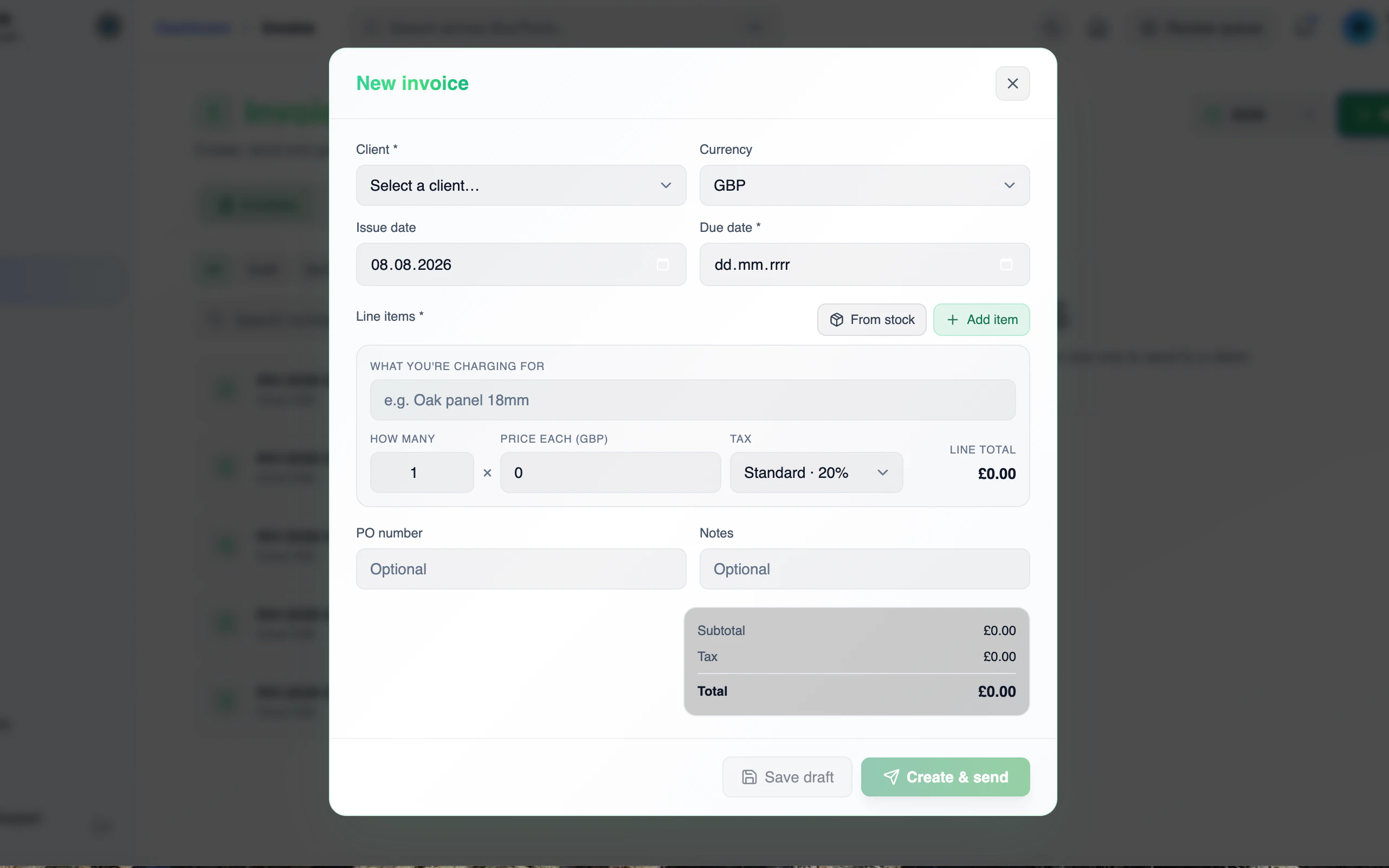
Add line items by hand, or pull them straight from storage
Add a line item and set quantity, price and VAT rate — 20%, 5%, 0%, 23% or reverse charge — and the amount works itself out.
Or tap From storage and pick a location, category and item. BusiTools shows what's in stock and the unit price, you set the quantity, and it lands on the invoice. Leave Update stock on save on and each storage line records an out movement when you save.
Add a PO number and notes if you need them, then save as a draft or create and send.


Sent, paid, settled
Record part payments or the full amount, and download the PDF
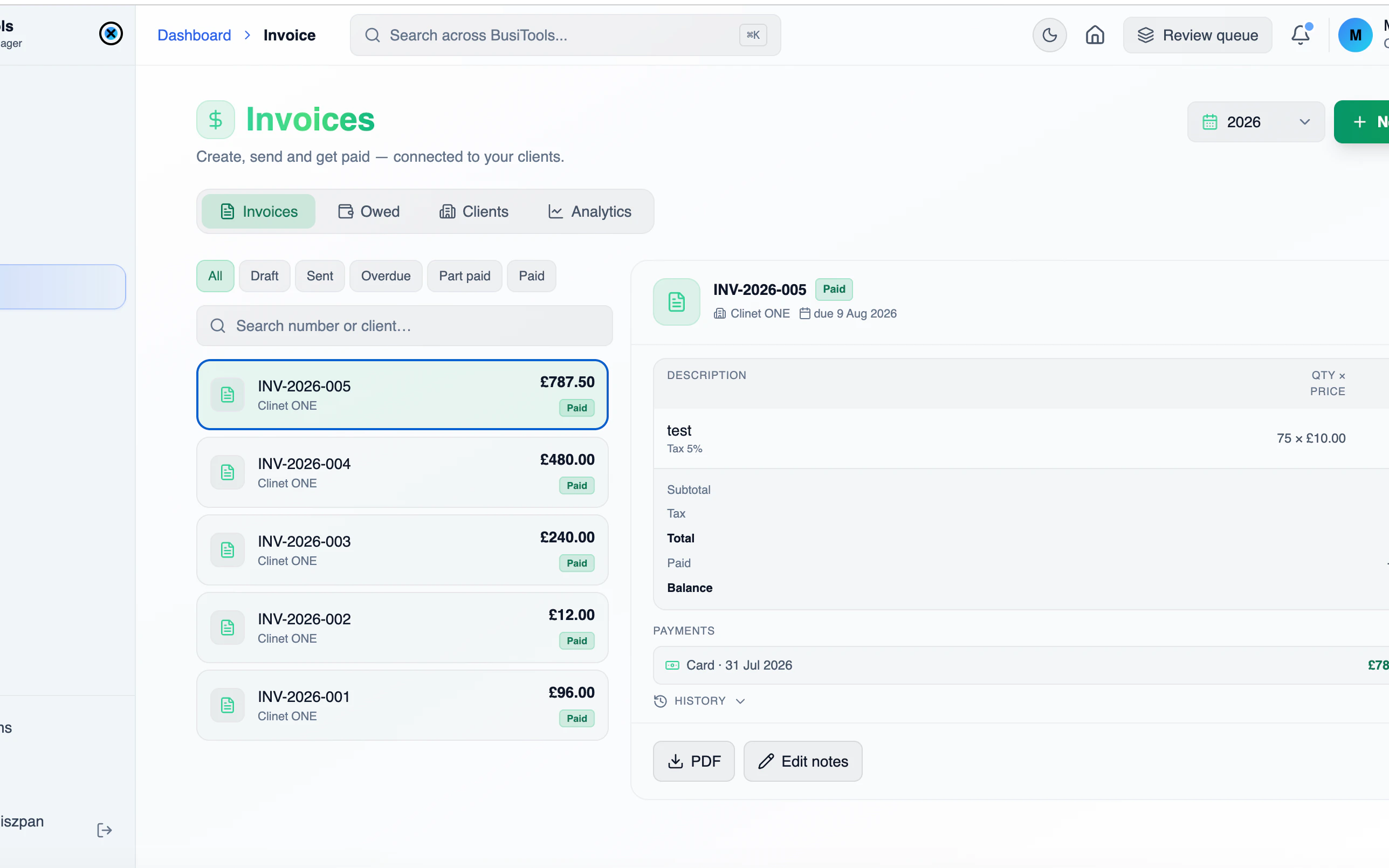
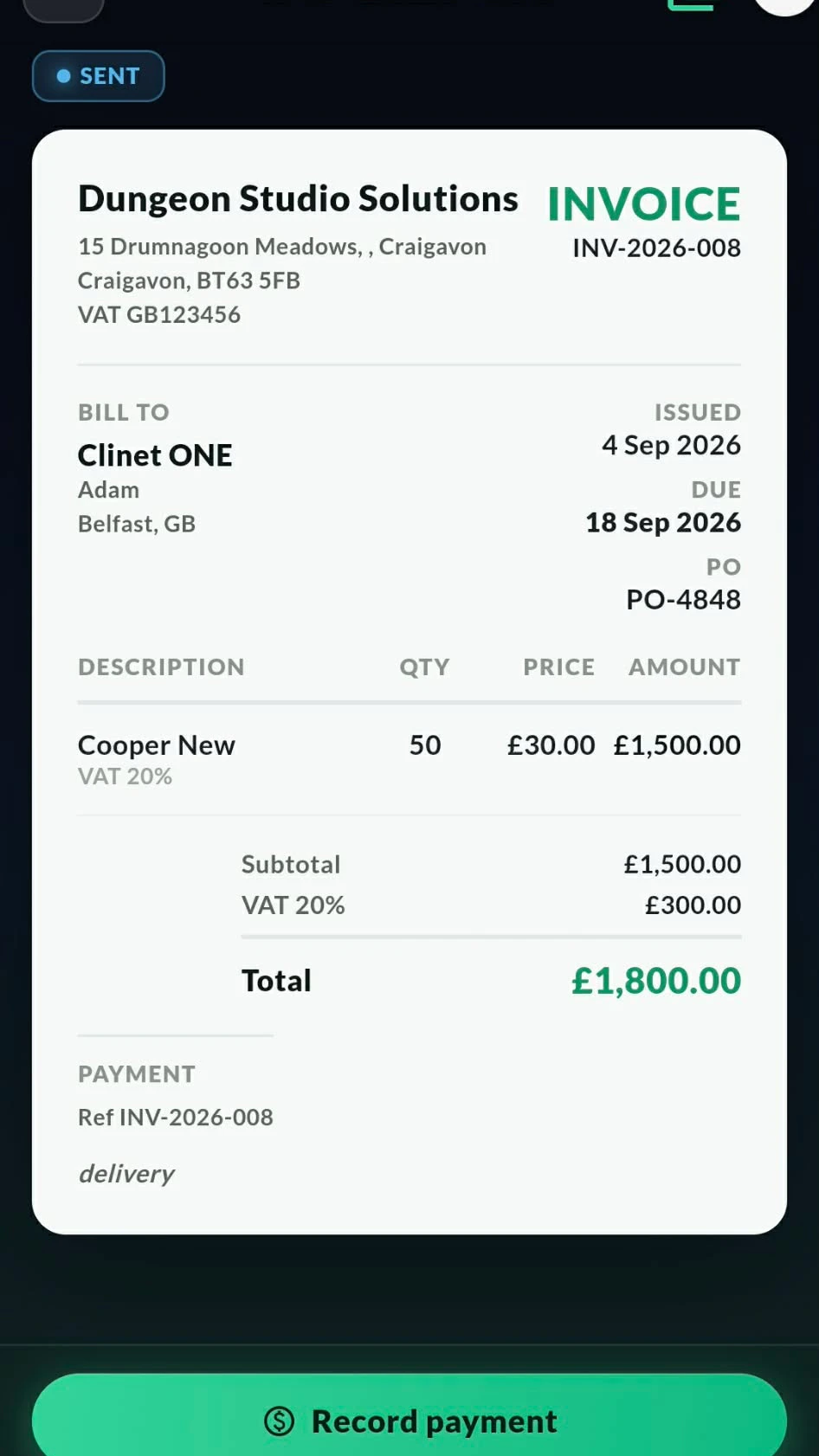
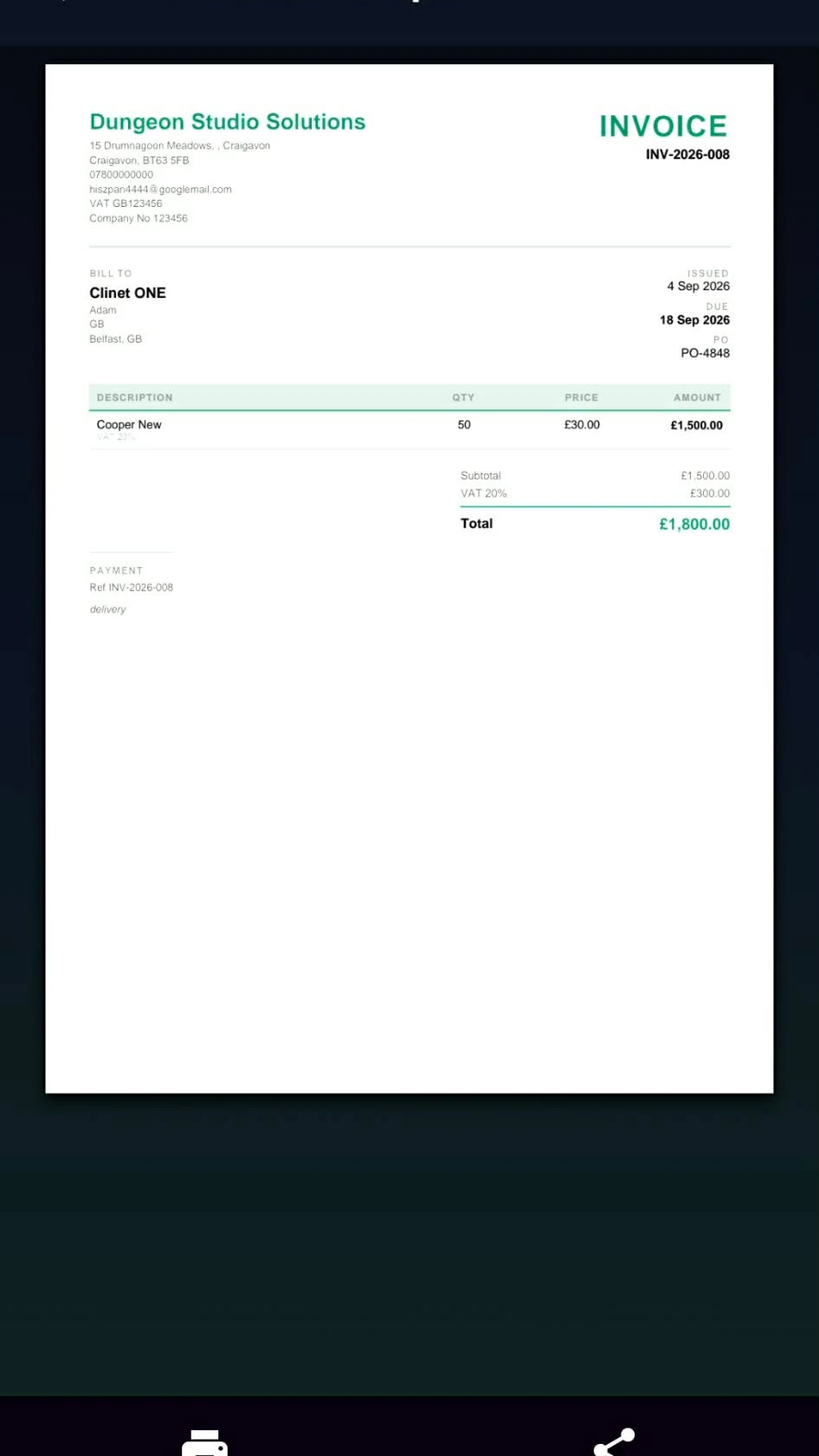
The finished invoice shows your business details, the client, issue and due dates, PO number, line items with VAT, and the total. A status badge tells you where it stands.
Tap Record payment to log what's come in — the full amount or part of it, with the payment type. Every payment is listed with its date and method, and the balance due updates as they land. Download the PDF whenever you need a copy.

Pick a look, then print or share
Three PDF templates, generated from the same invoice
Choose how the PDF should look: Emerald matches the in-app invoice paper, Classic adds a navy header band for a more traditional feel, and Minimal keeps it monochrome with thin rules.
The PDF opens straight away, ready to print or share from your phone — email it to the client, send it to the office, or save it wherever you keep your records.

Know what you're owed
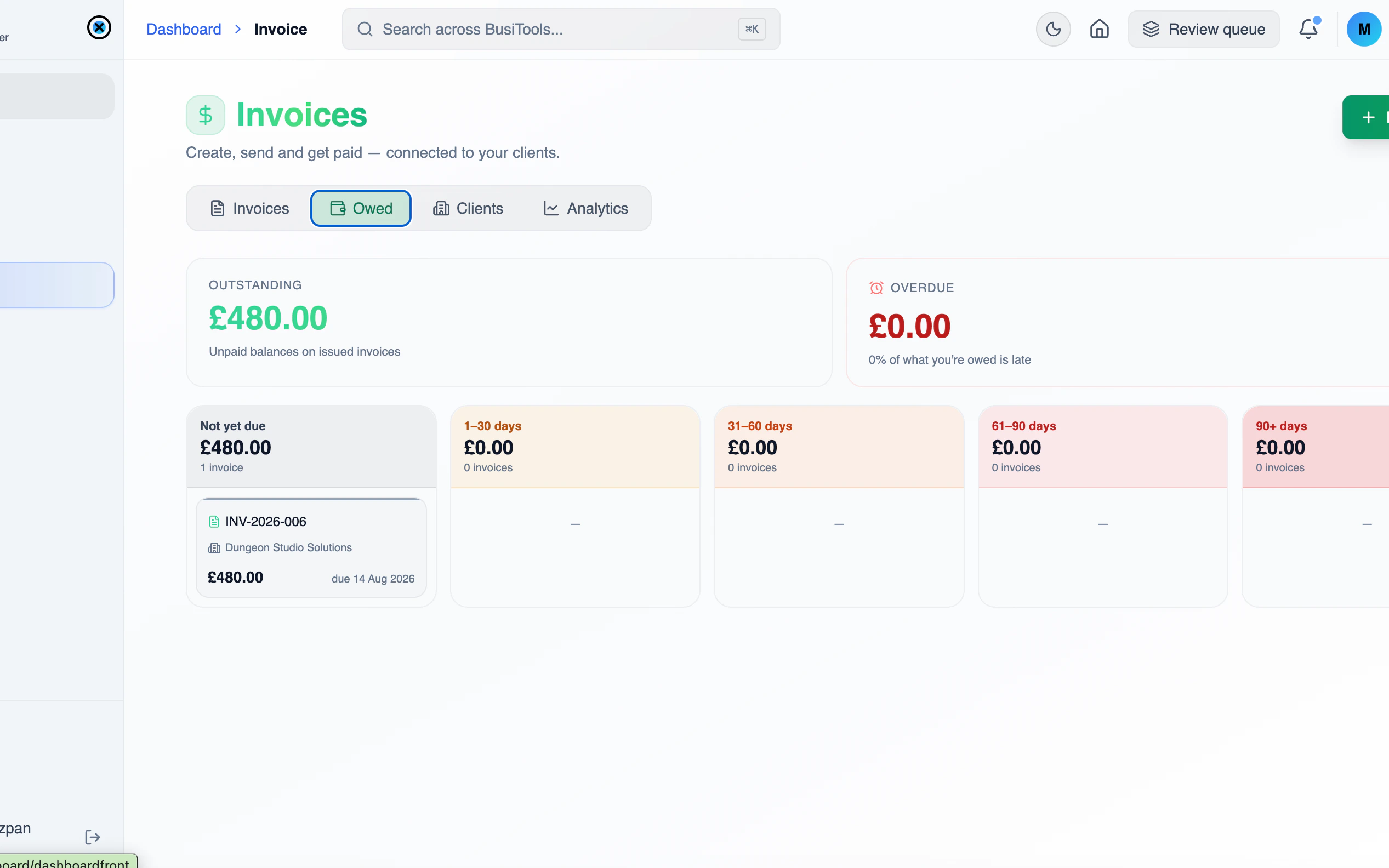
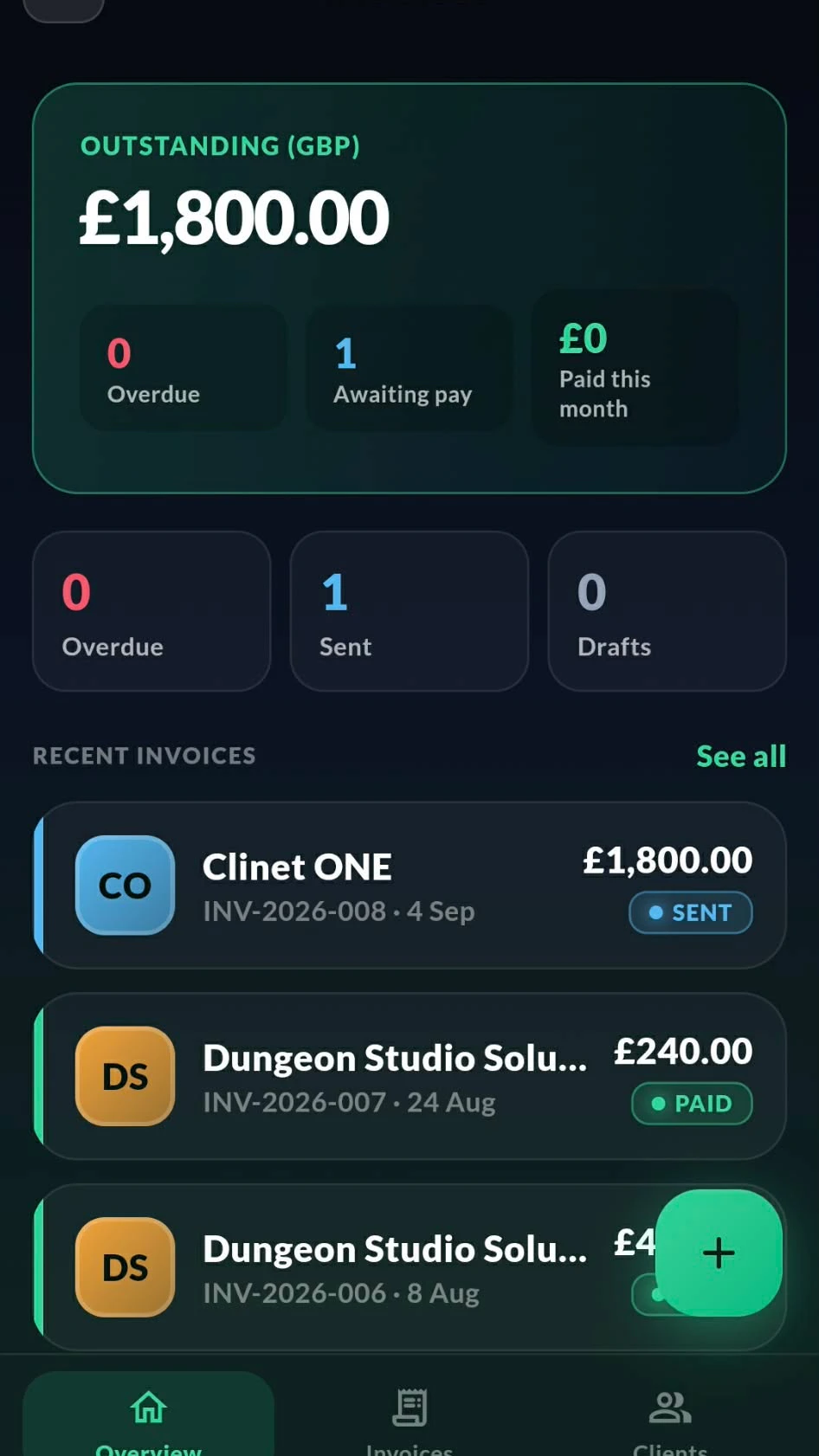
Outstanding total up top, recent invoices below, payment two taps away
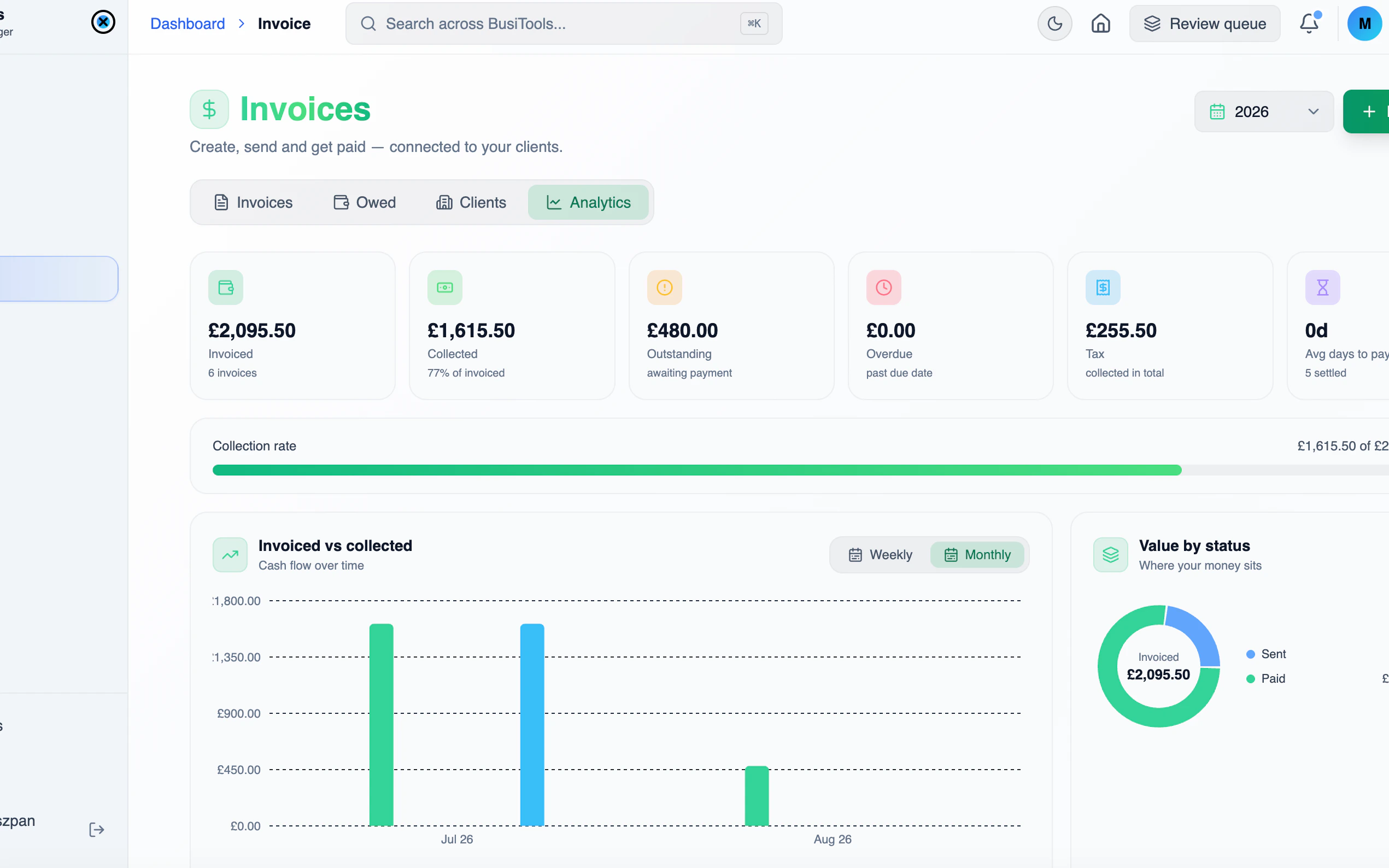
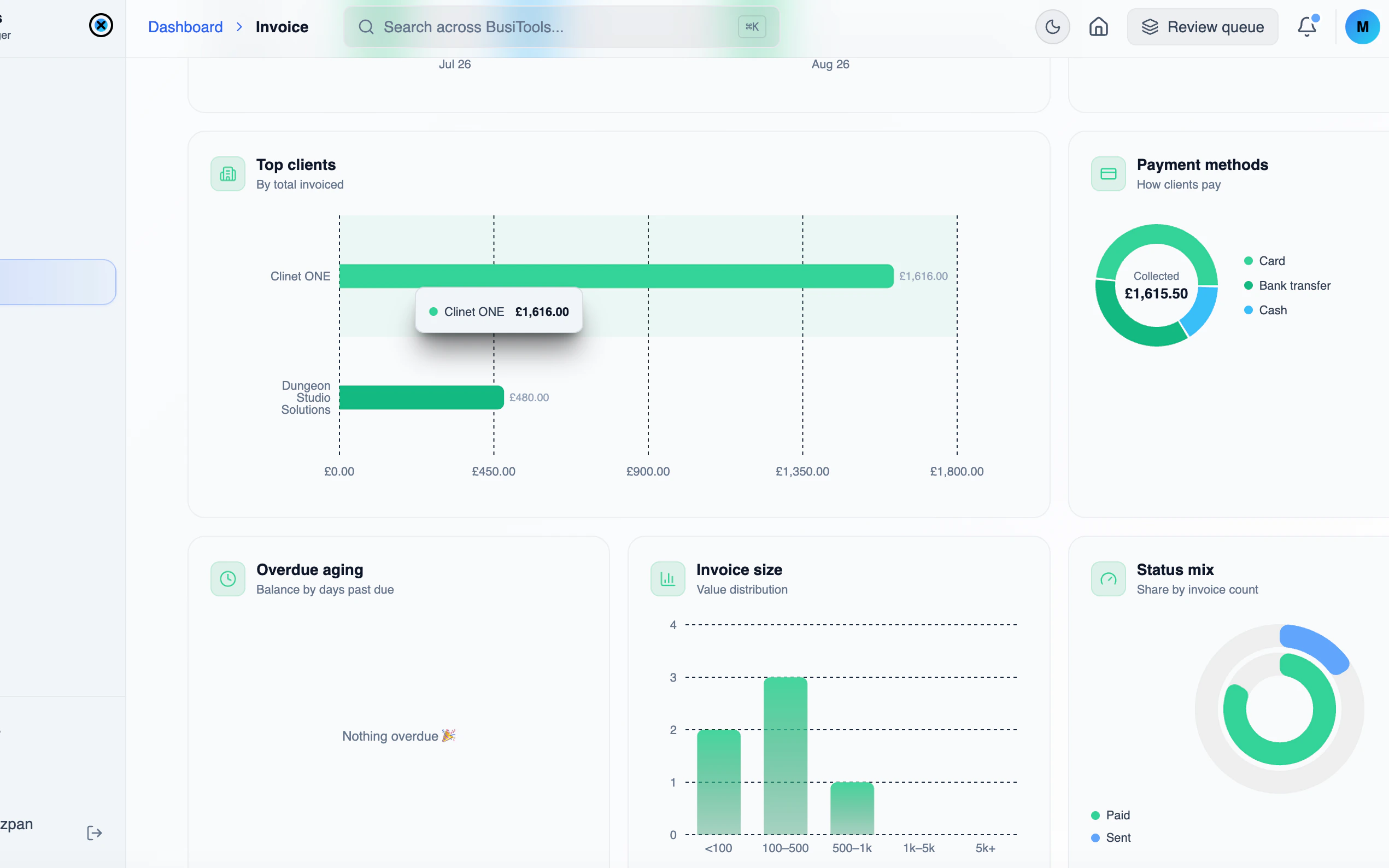
The overview opens on what's outstanding, with counts for overdue, awaiting pay and paid this month, plus sent and drafts. Recent invoices sit underneath with their client, number, amount and status.
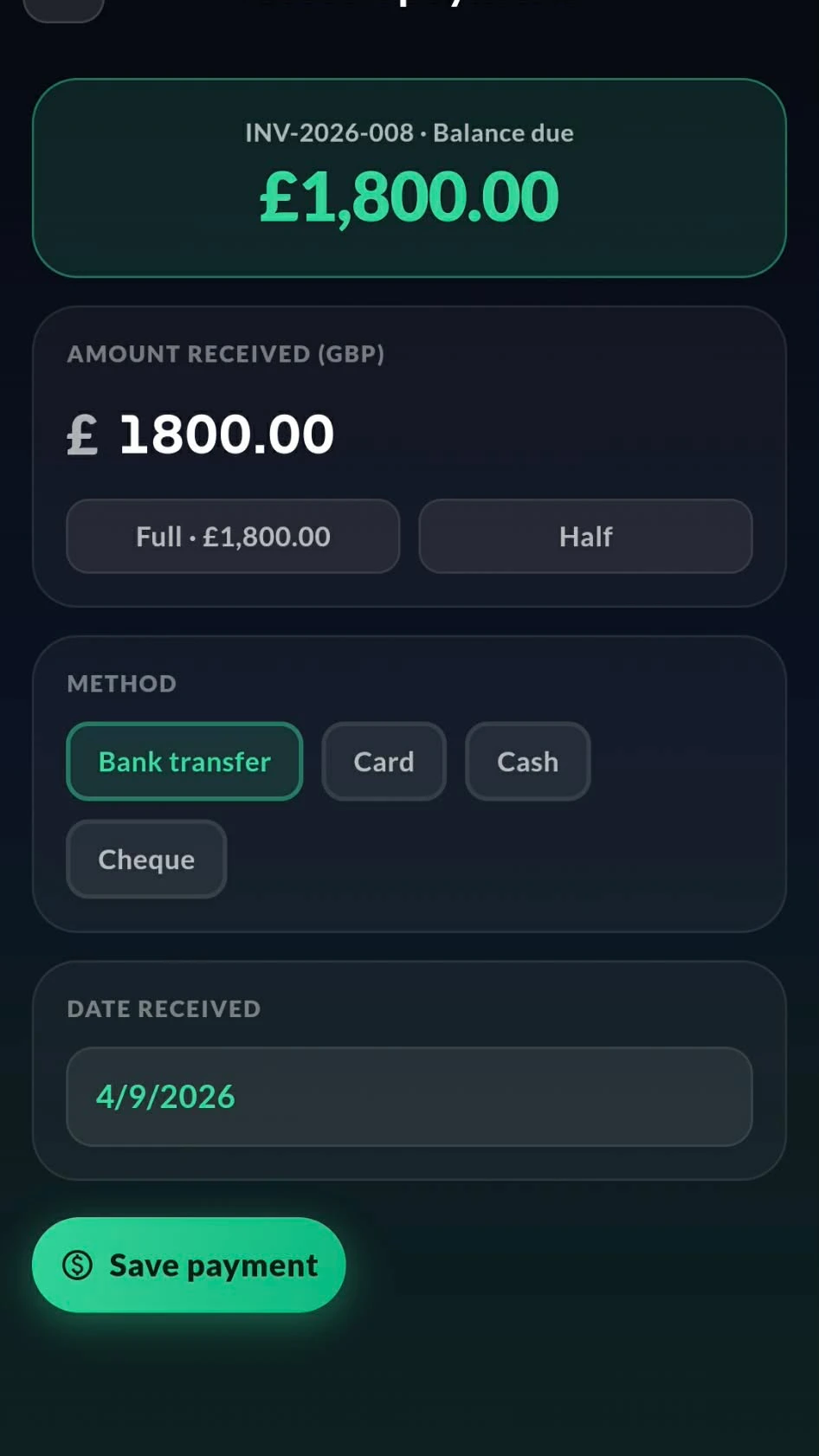
When money comes in, open the invoice and record it. Enter the amount received or use the Full and Half shortcuts, pick the method — bank transfer, card, cash or cheque — set the date and save. The balance due updates straight away.
Invoice it, and the stock takes care of itself
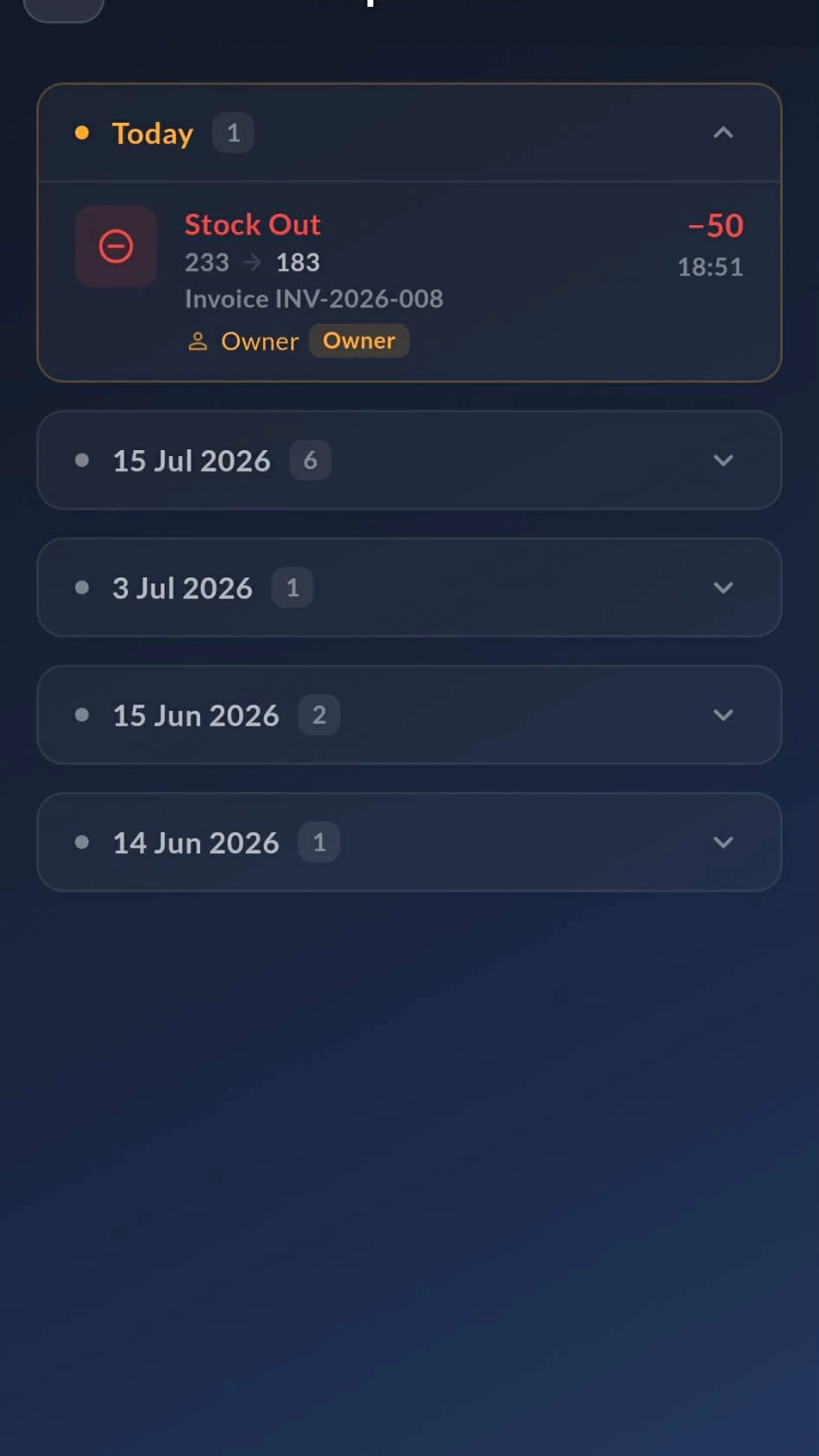
Storage lines reduce your stock and log the movement automatically
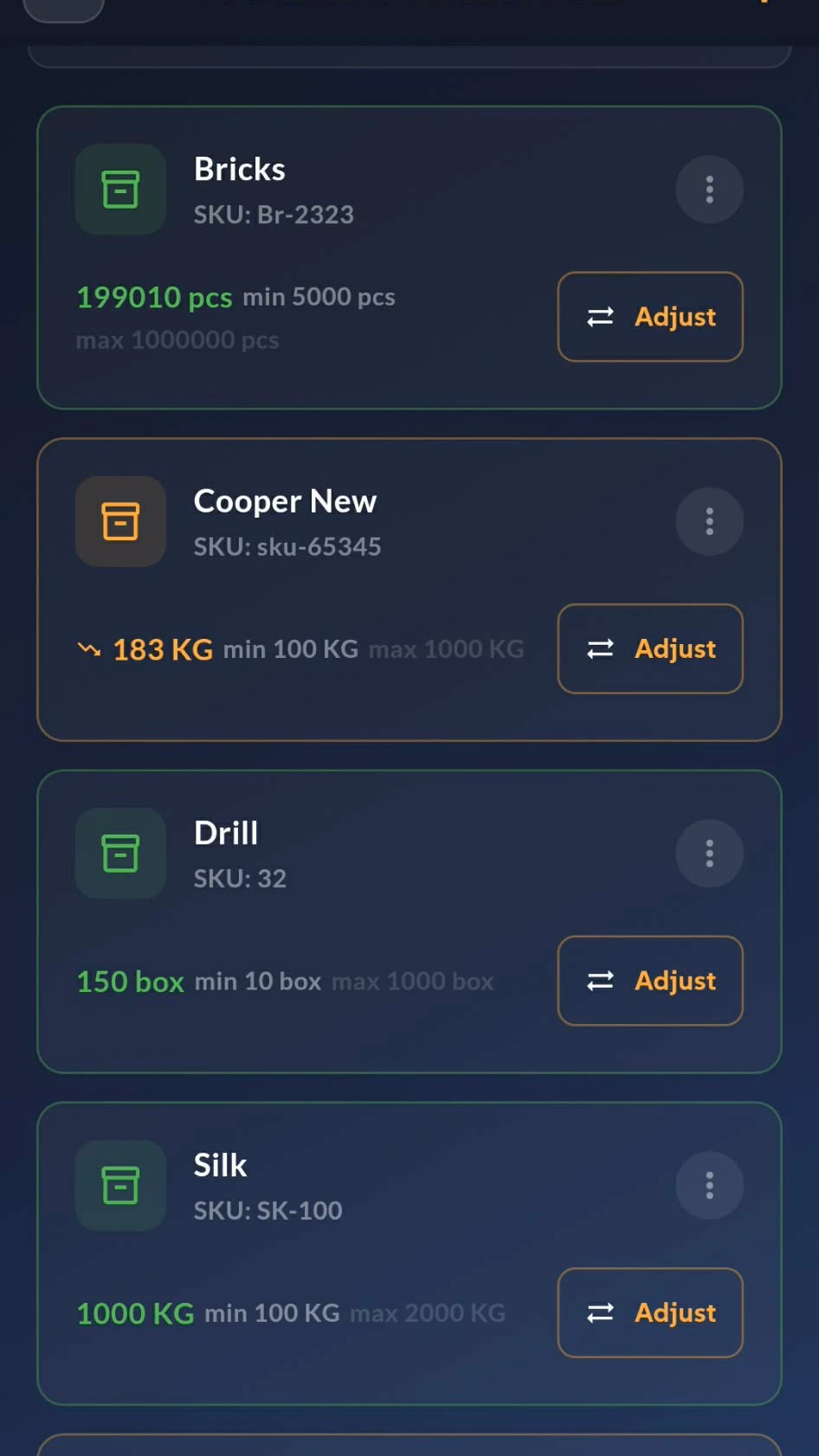
When an invoice includes an item pulled from storage, saving it takes that quantity out of stock. Levels update on the item card, against the minimum and maximum you've set, so you can see straight away what's running low.
Every movement is written to that item's log — a stock out, the quantity, the level before and after, who did it and which invoice it came from. Grouped by date, so you can trace any change back to the job that caused it.
How the desktop app works
Invoicing with room to work. Build line items, pull from storage, send the PDF and log payments — all on one screen, with the full list and every client a click away.
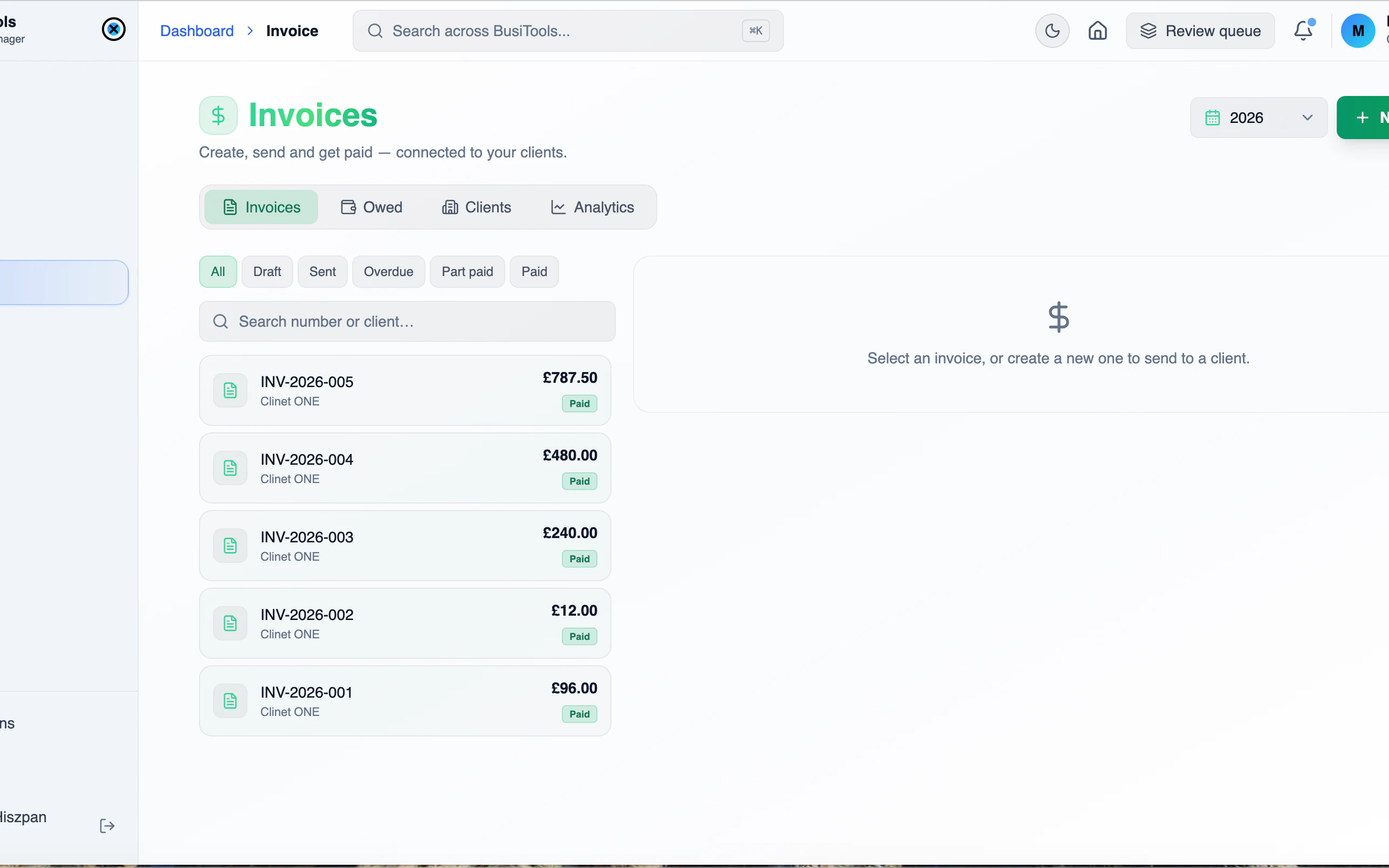
1Every invoice, filtered by status
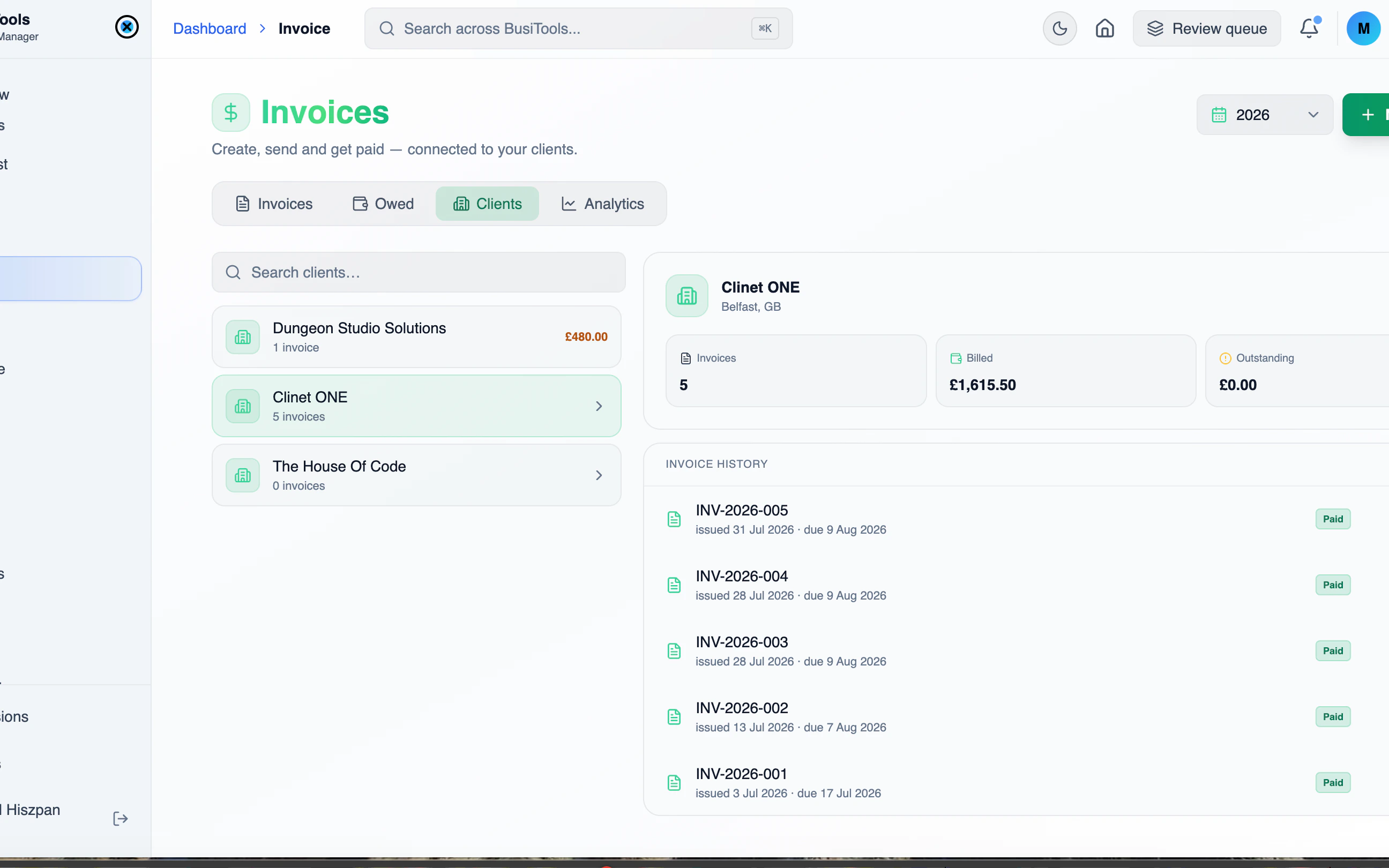
Filter by draft, sent, overdue, part paid or paid, search by number or client, and switch year from the picker. Click any invoice to open it beside the list.