CheckList
Build the checks once, and know they're being done
Every business has things that have to happen the same way every time — opening up, closing down, a machine check before it runs. CheckList is where you write those down once, and your team works through them on their phones.
Build your own lists, set who runs them and how often — daily, or every time a piece of equipment is used. And because CheckList connects to Tasks, you can attach an existing checklist to a subtask, so the steps come with the job instead of living in someone's head.

Run it step by step, nothing skipped
Grouped into stages, with required answers before you move on
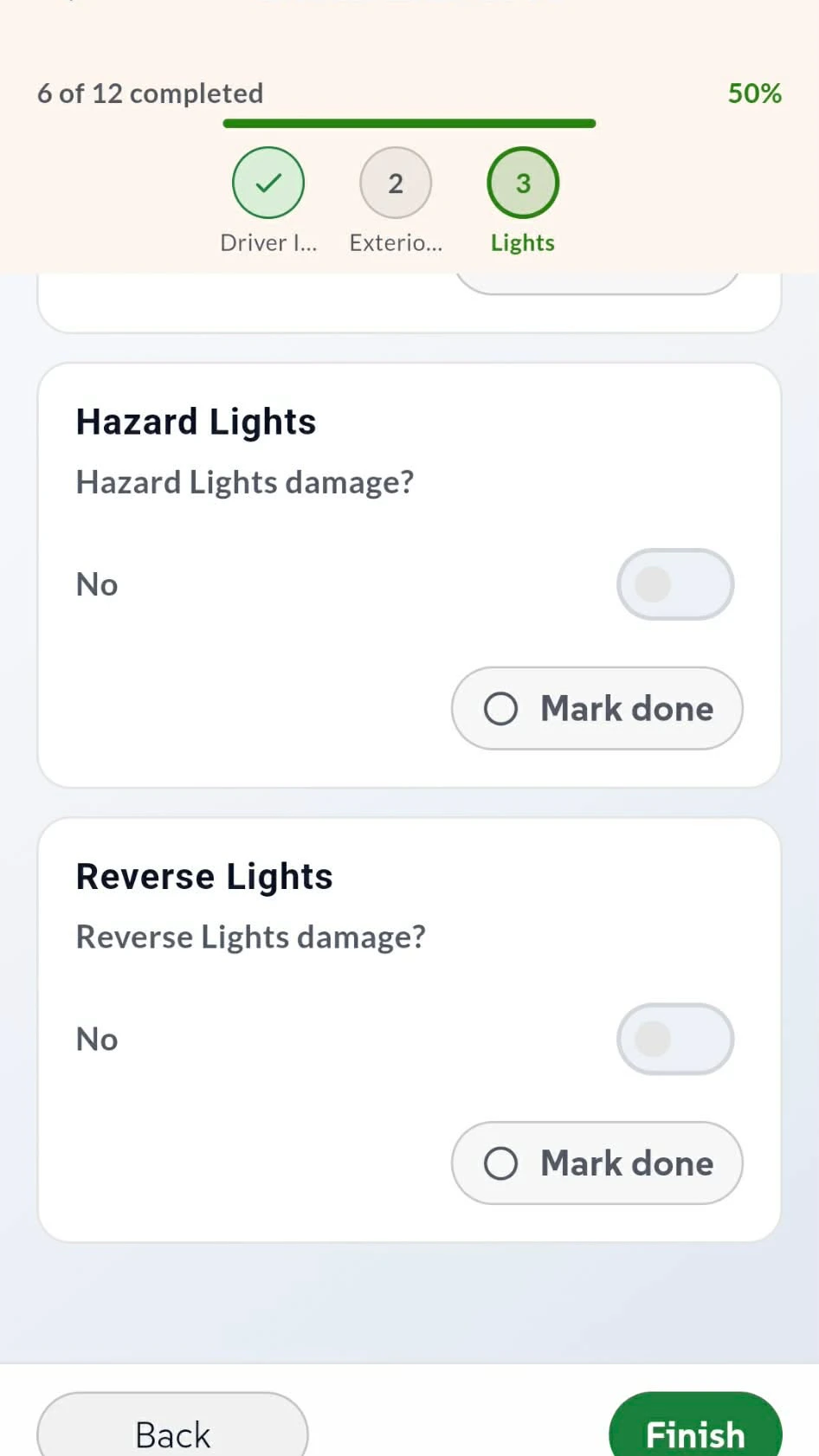
Pick a checklist from the Run tab and it opens as a guided flow. Steps are grouped into stages across the top, with a progress bar and a percentage so everyone can see how far through they are.
Each item takes the answer it needs — type a driver name or an odometer reading, flip a yes/no toggle for damage — and required items have to be answered before the next stage unlocks. Work through to the end and hit Finish.

A record of what was checked, and when
To Do and Done Today up front, the full answers behind them
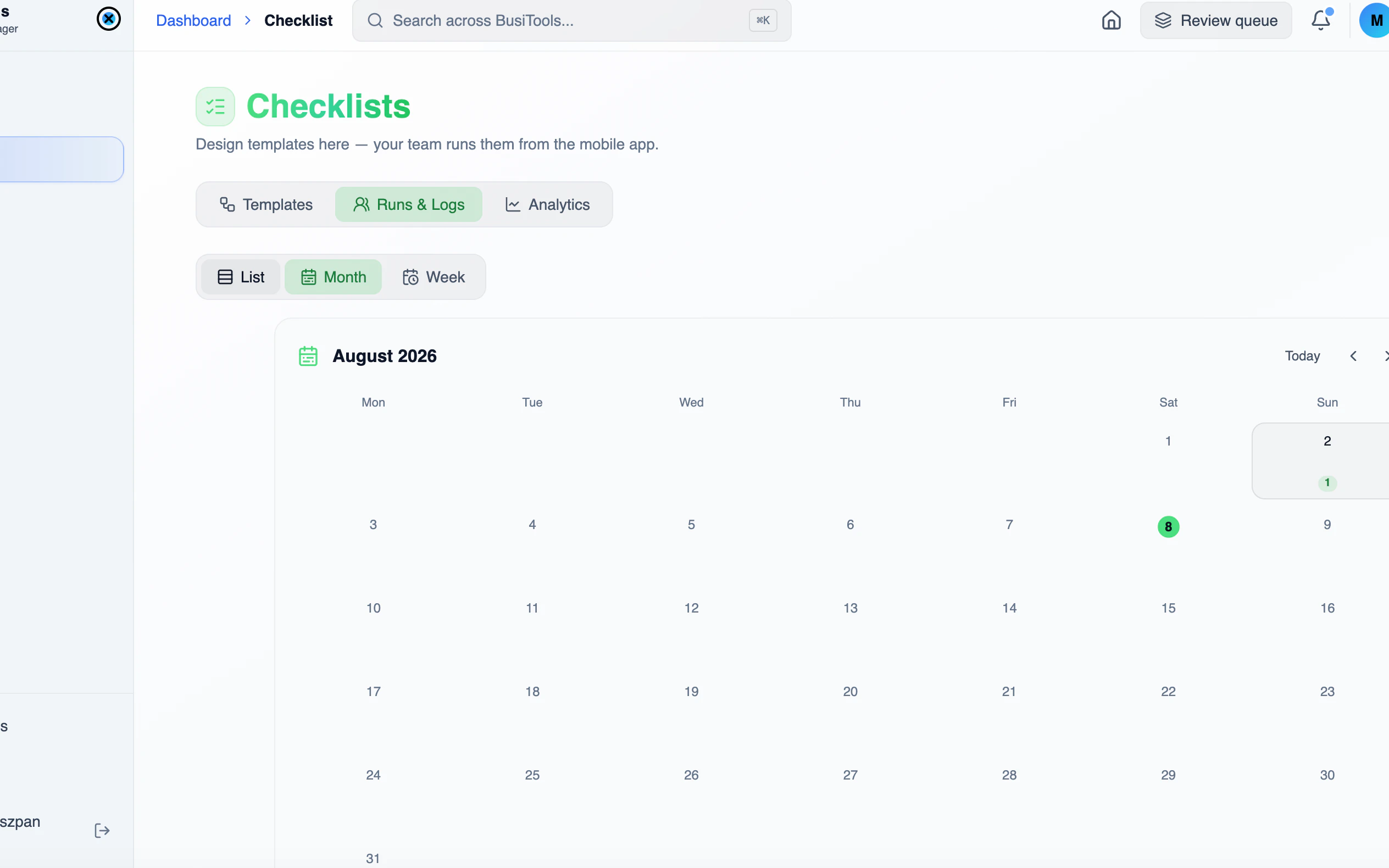
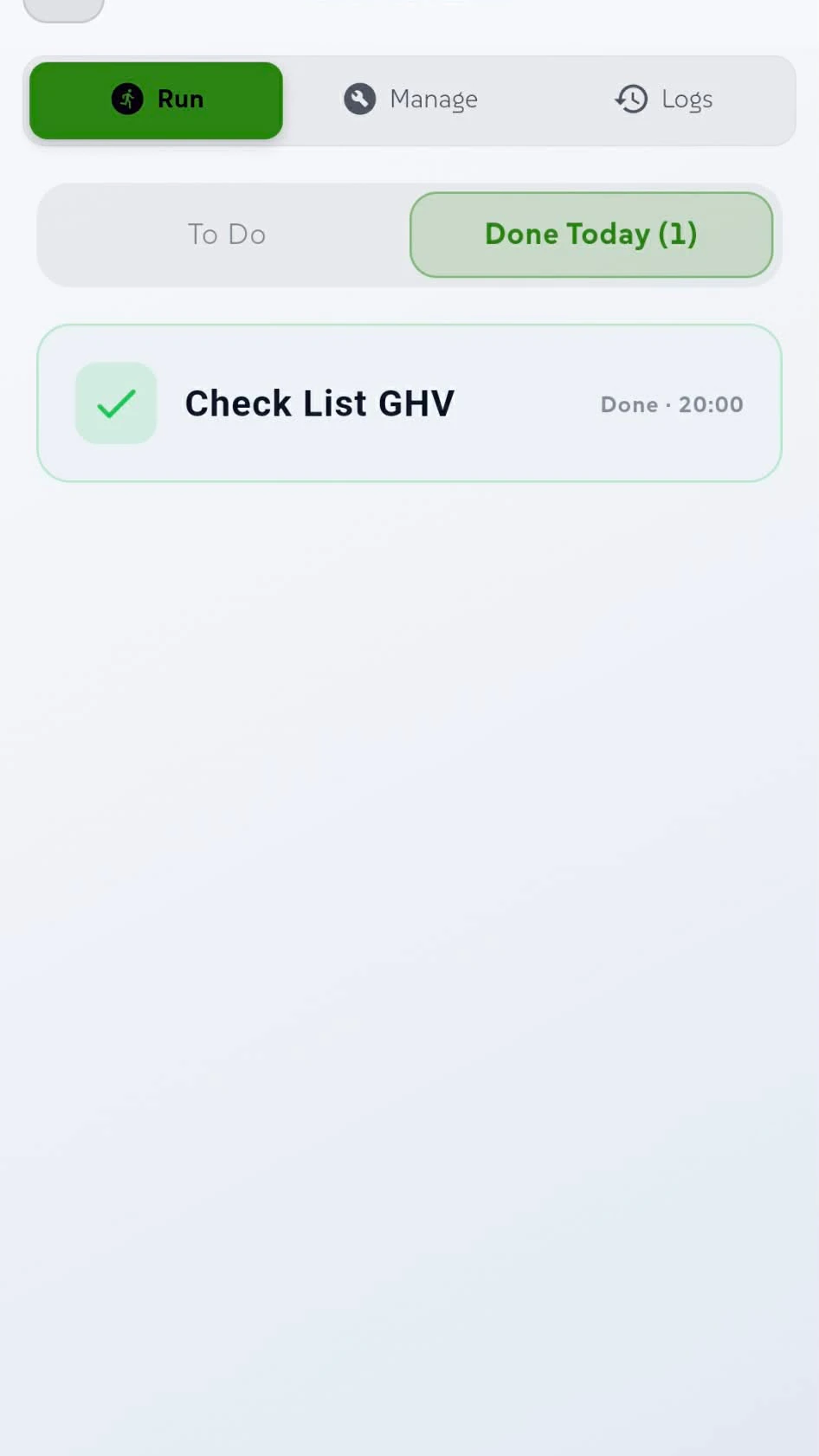
The Run tab splits into To Do and Done Today, so anyone opening the app can see what's still outstanding and what's already been completed, with the time it was finished.
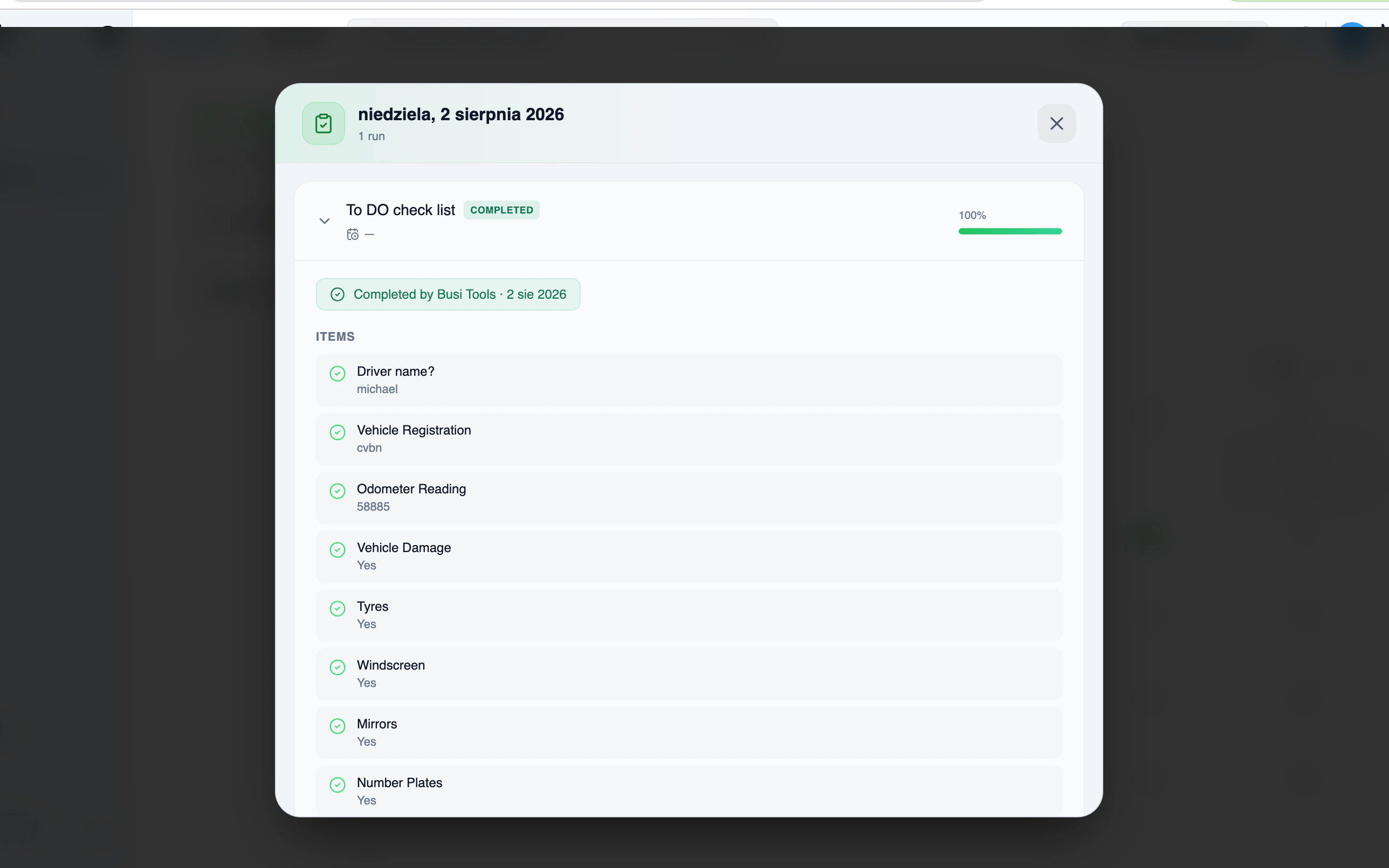
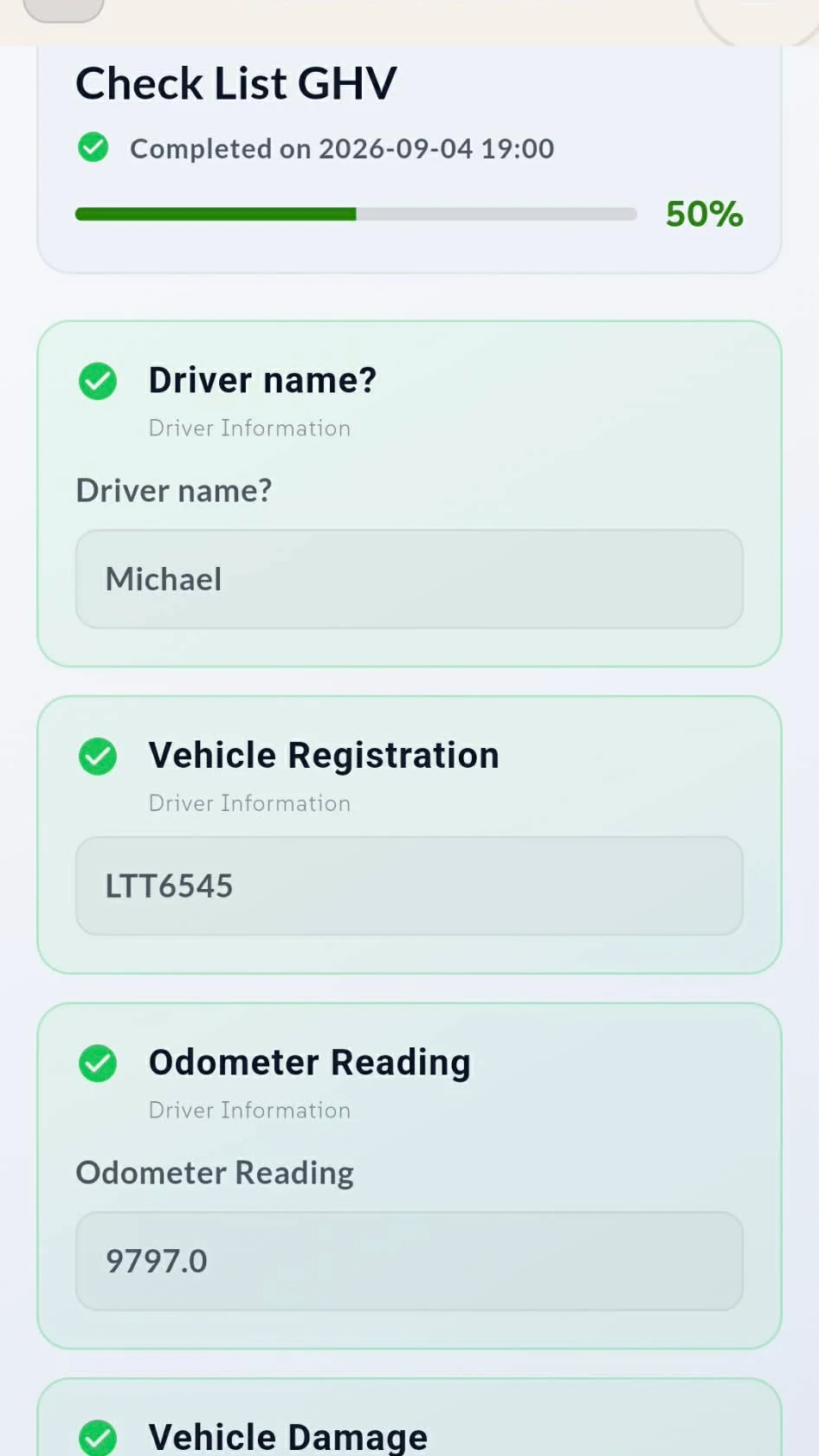
Open a completed run and every answer is there as it was submitted — driver name, registration, odometer, damage checks — with the completion date and progress. Owners and anyone with full access can review the whole record; everyone else sees what they finished on their own run.
Build the list, item by item
Add items in the Manage tab and group them into categories
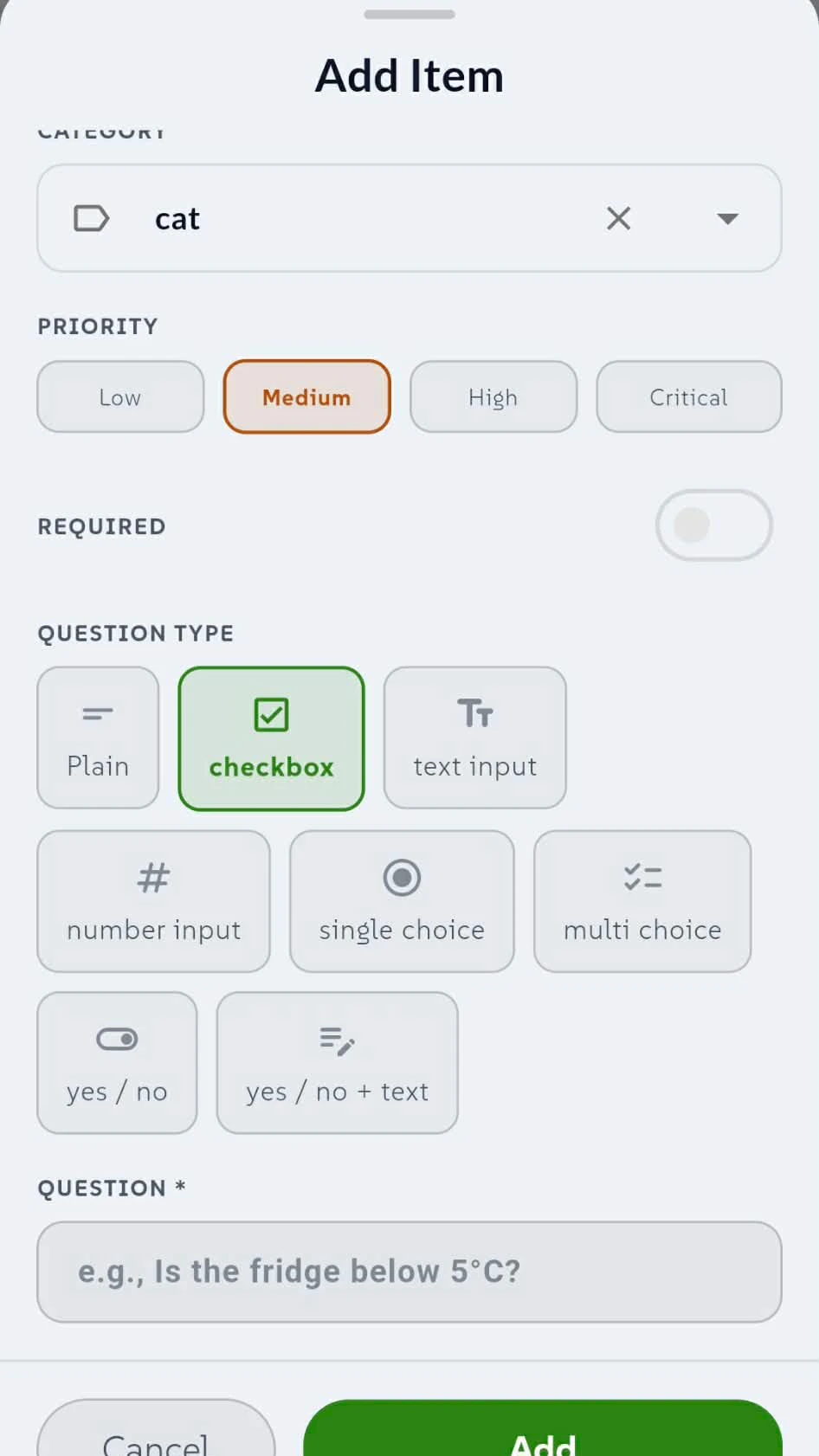
The Manage tab is where checklists get built. Create a checklist, then add items to it one at a time — each with its own question, priority and answer type.
Every item belongs to a category, and those categories become the stages your team steps through when they run it. Group the driver questions together, the exterior checks together, the lights together — the run flow follows the structure you set here.
Choose how each question gets answered
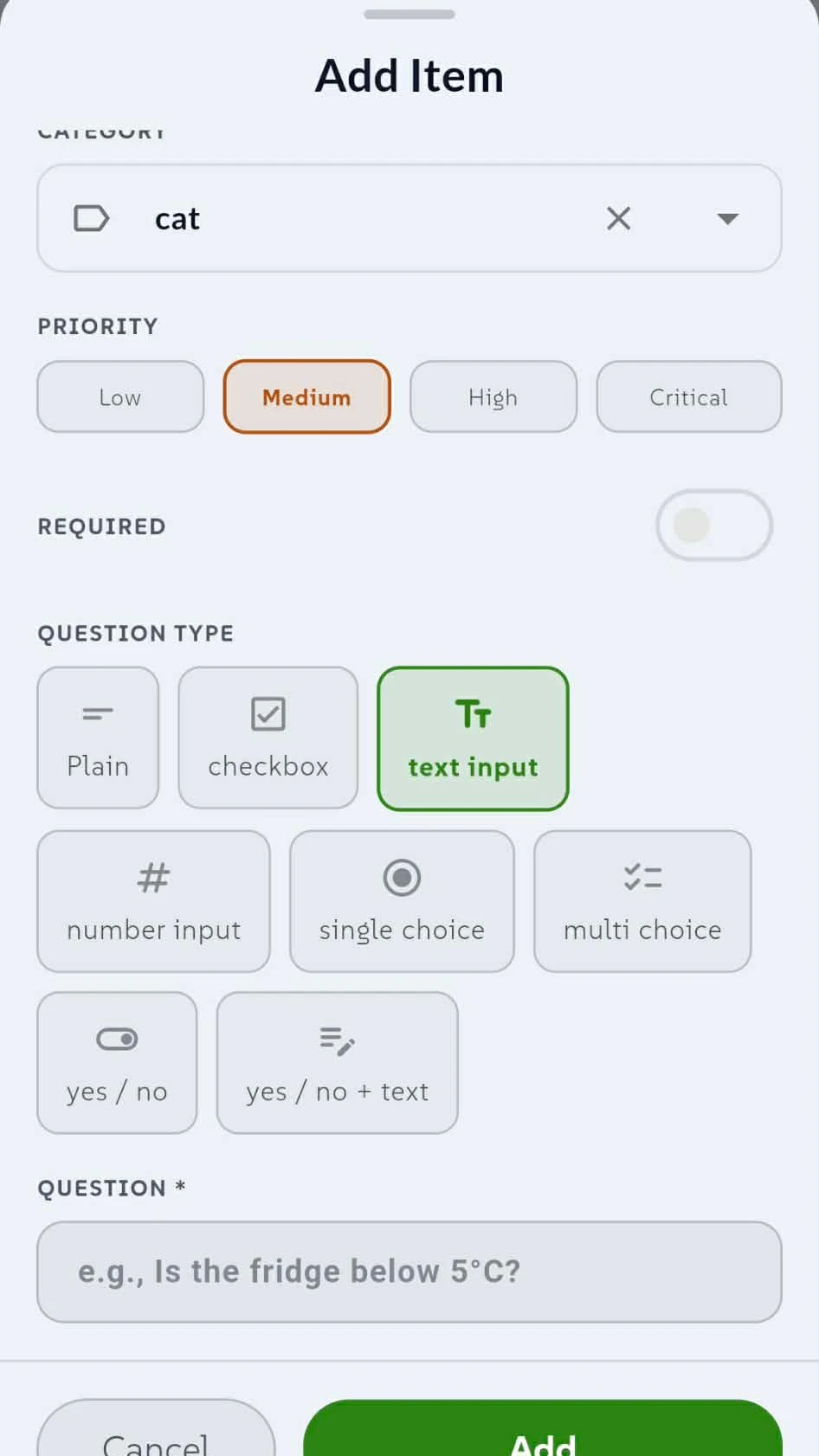
Plain, checkbox, text input, number input — and single choice with your own options
Set a category, a priority from low to critical, and whether the item is required. Then pick the type. Plain is an instruction with nothing to fill in. Checkbox is a straight tick when something's done. Text input takes a written answer like a name or a registration. Number input is for readings — temperatures, mileage, counts.
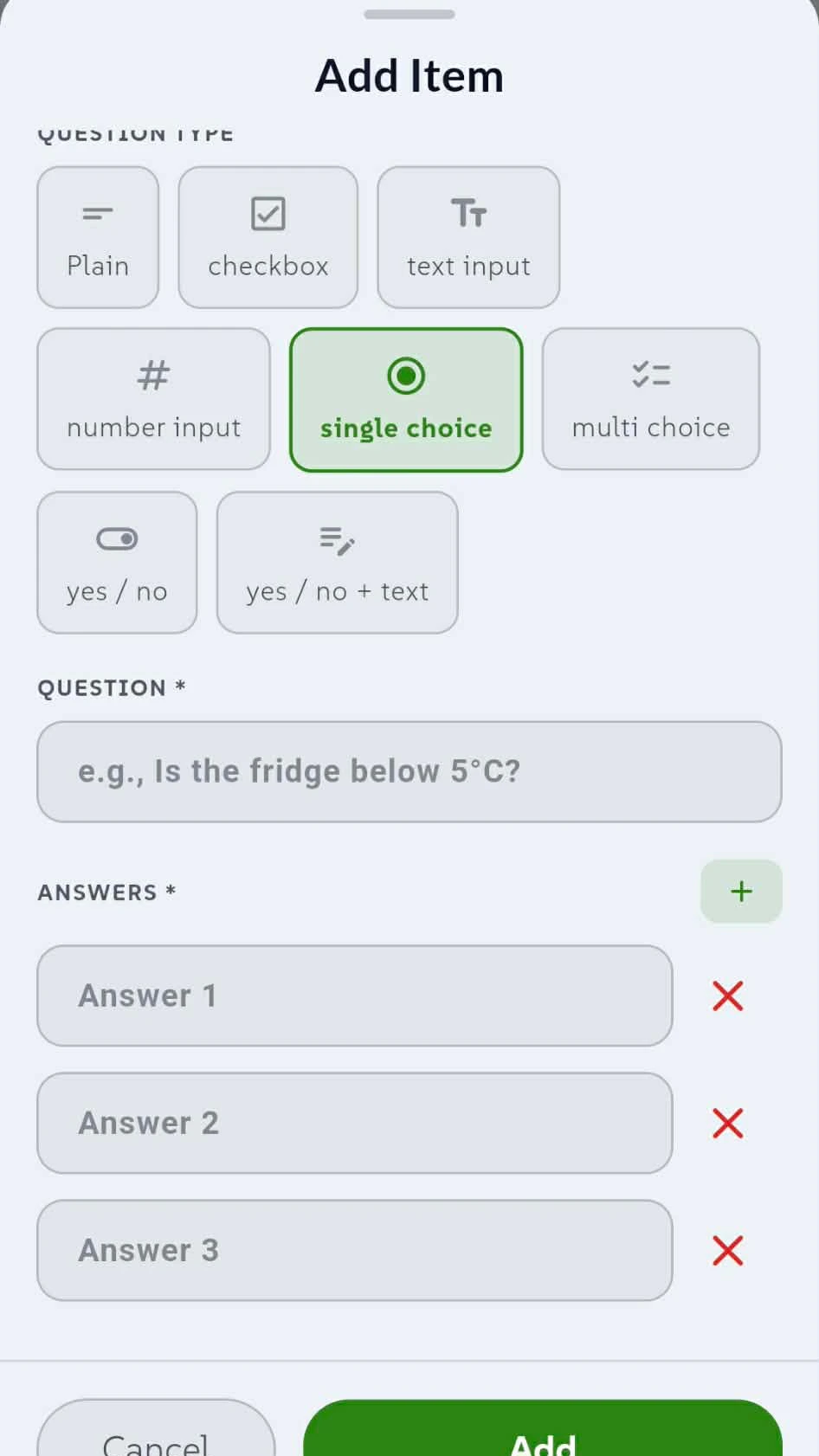
Single choice goes a step further: write the question, then add as many answer options as you need. Your team picks one, and everyone answers the same way every time.
When one answer isn't enough
Multi choice, yes/no, and yes/no with a follow-up box
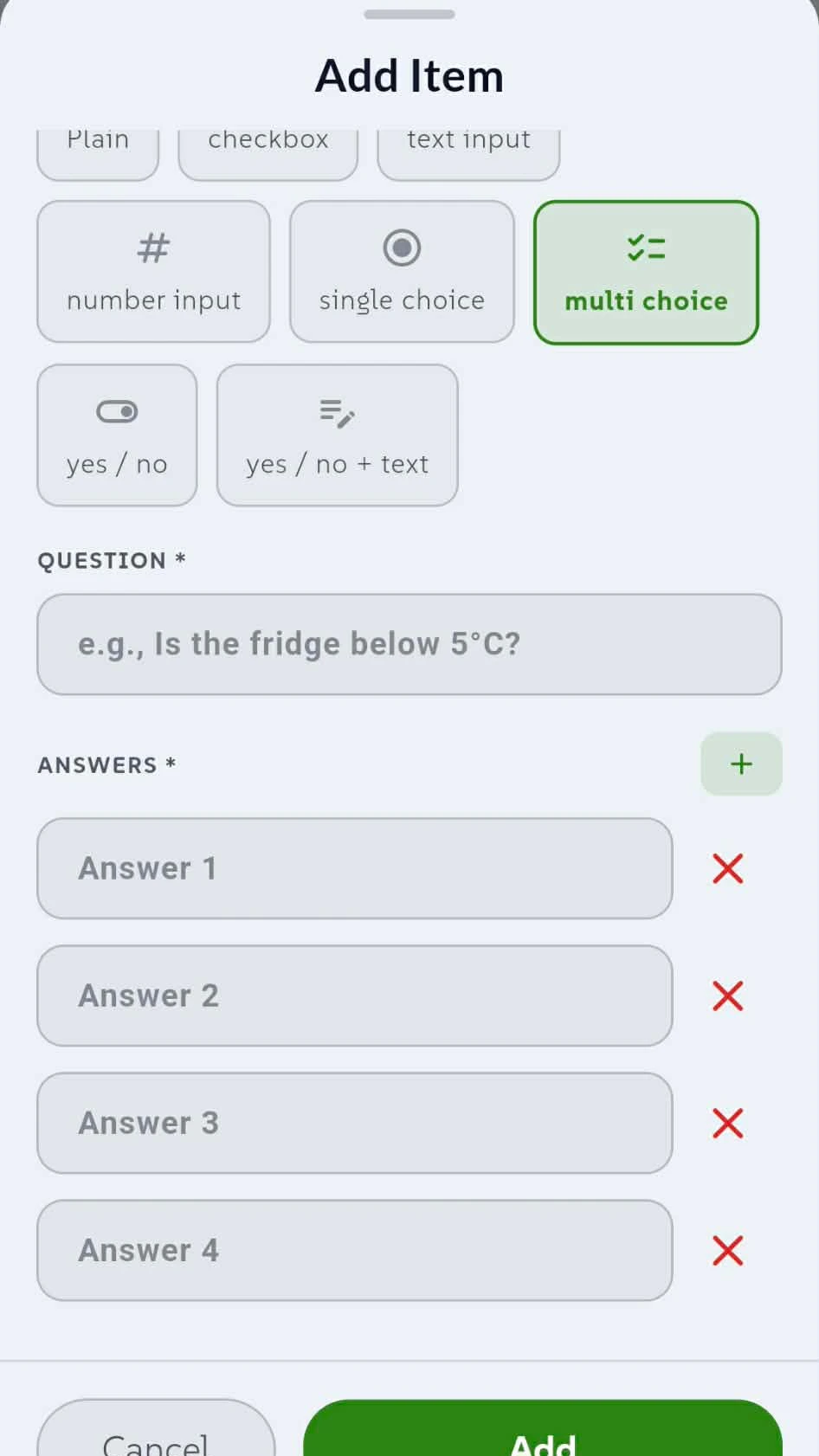
Multi choice works like single choice but lets your team tick more than one option. Write the question, add as many answers as the job needs, and remove any that don't apply.
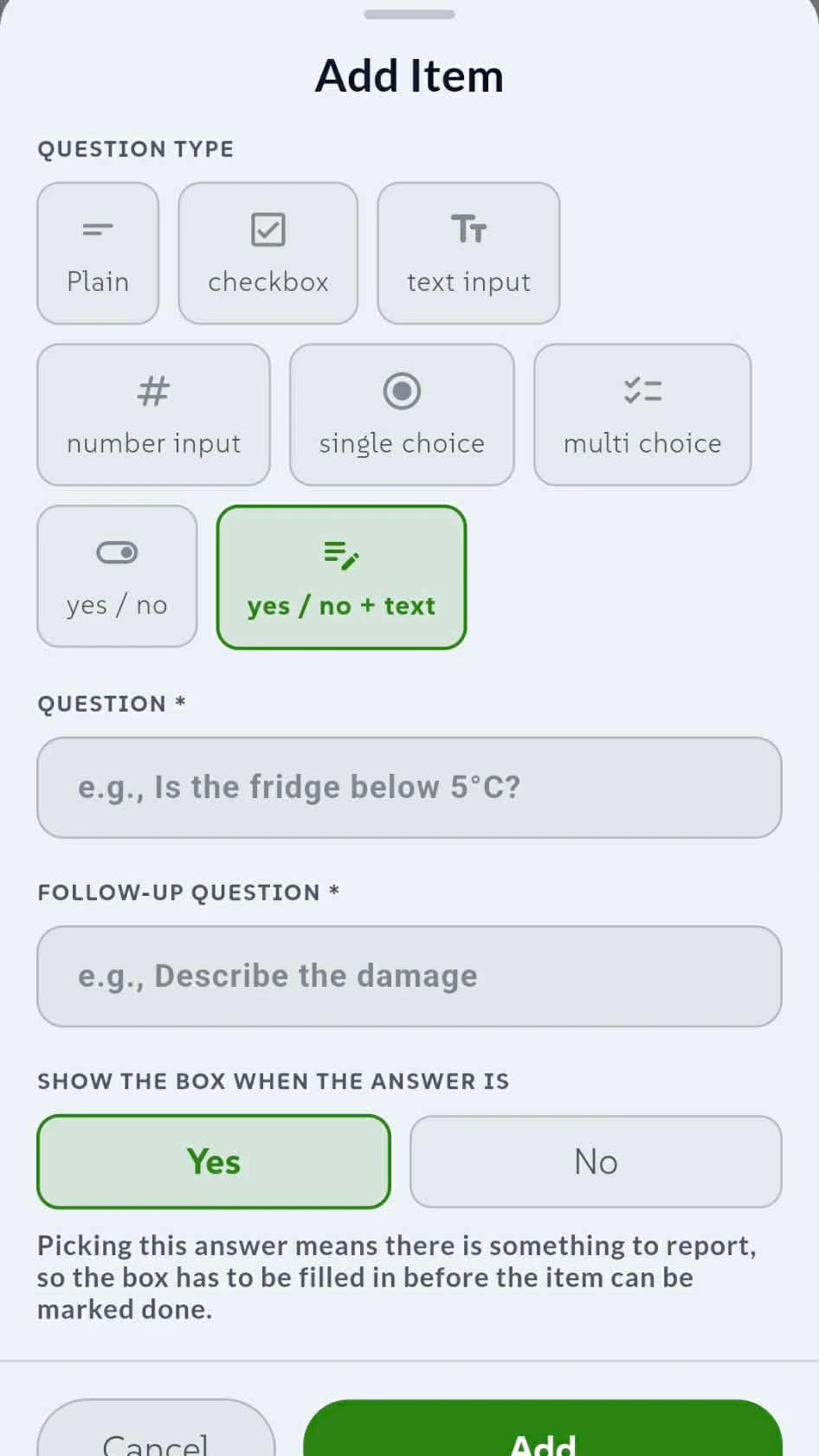
Yes/no is the quickest check there is. Yes/no + text adds a follow-up box and lets you decide which answer opens it — pick Yes or No as the trigger. When that answer is chosen, the box has to be filled in before the item can be marked done, so a reported problem always comes with an explanation.
The full history, for the people who need it
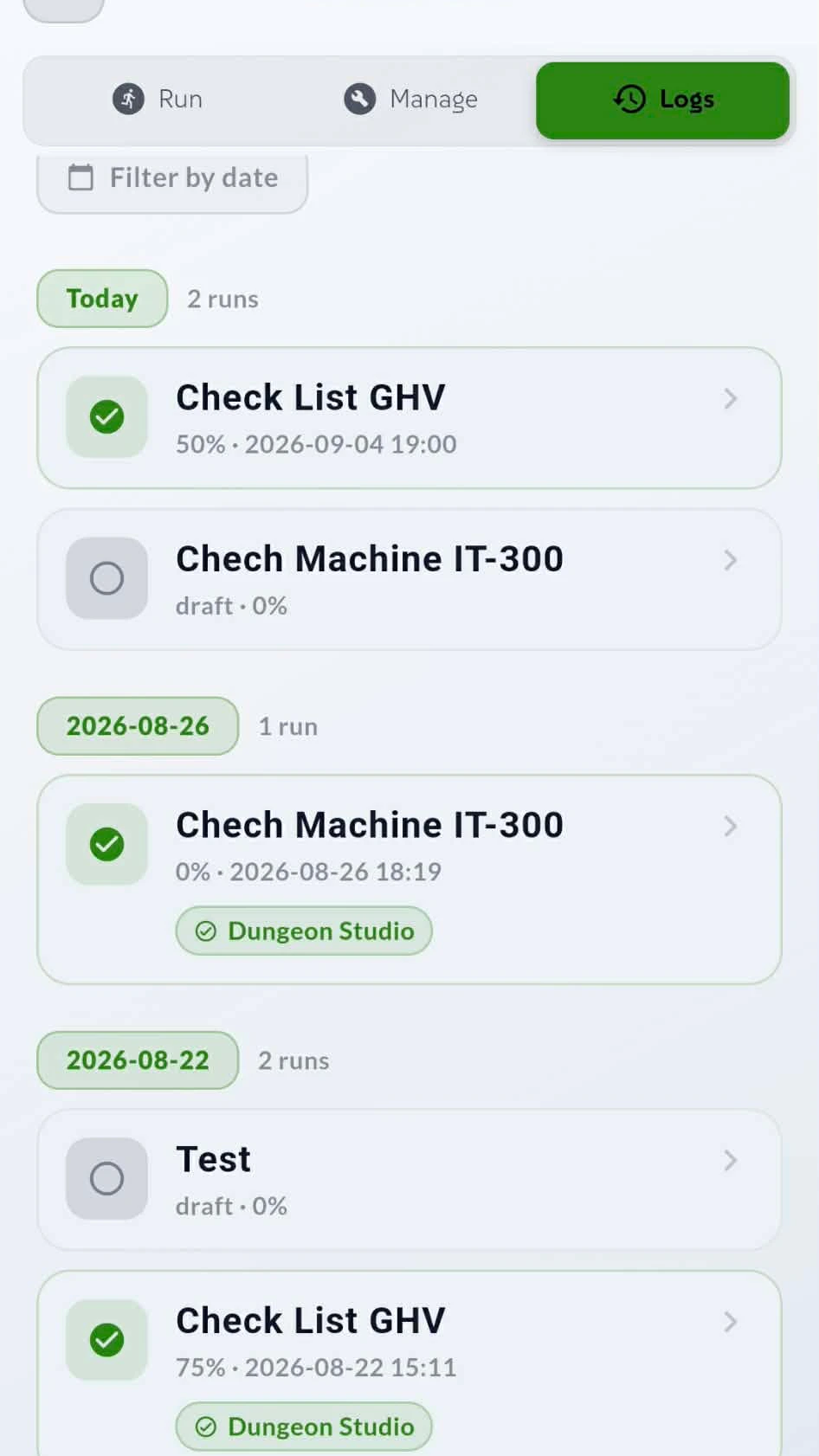
Every completed run, filterable and grouped by date
The Logs tab keeps every checklist that's been run — which list, which machine or vehicle, who completed it and when. Filter down to what you're looking for and open any entry to see the answers exactly as they were submitted.
Access is controlled: owners, and the managers or members you've given full access to, can see the whole history. Everyone else just sees the runs they completed themselves.
How the desktop app works
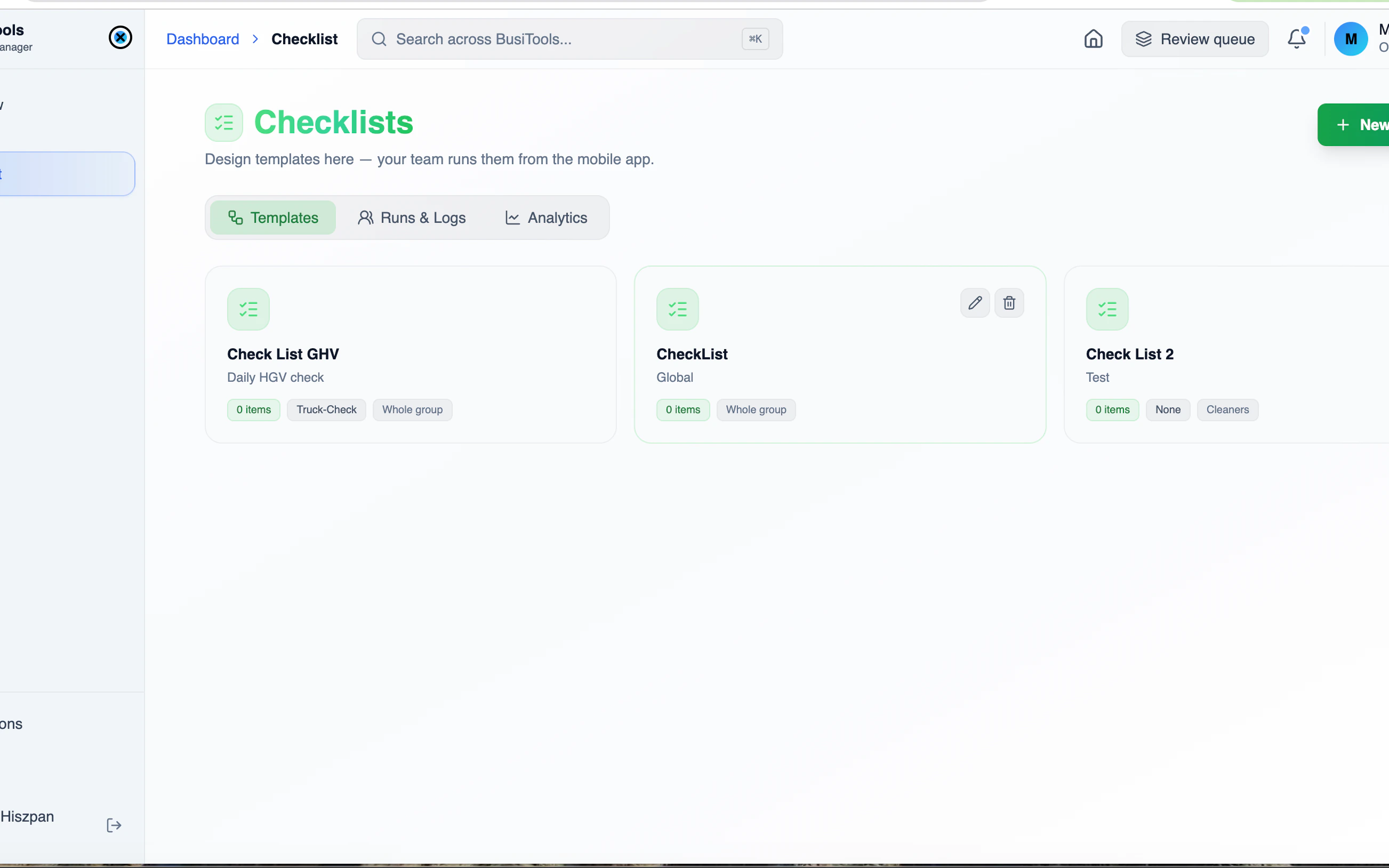
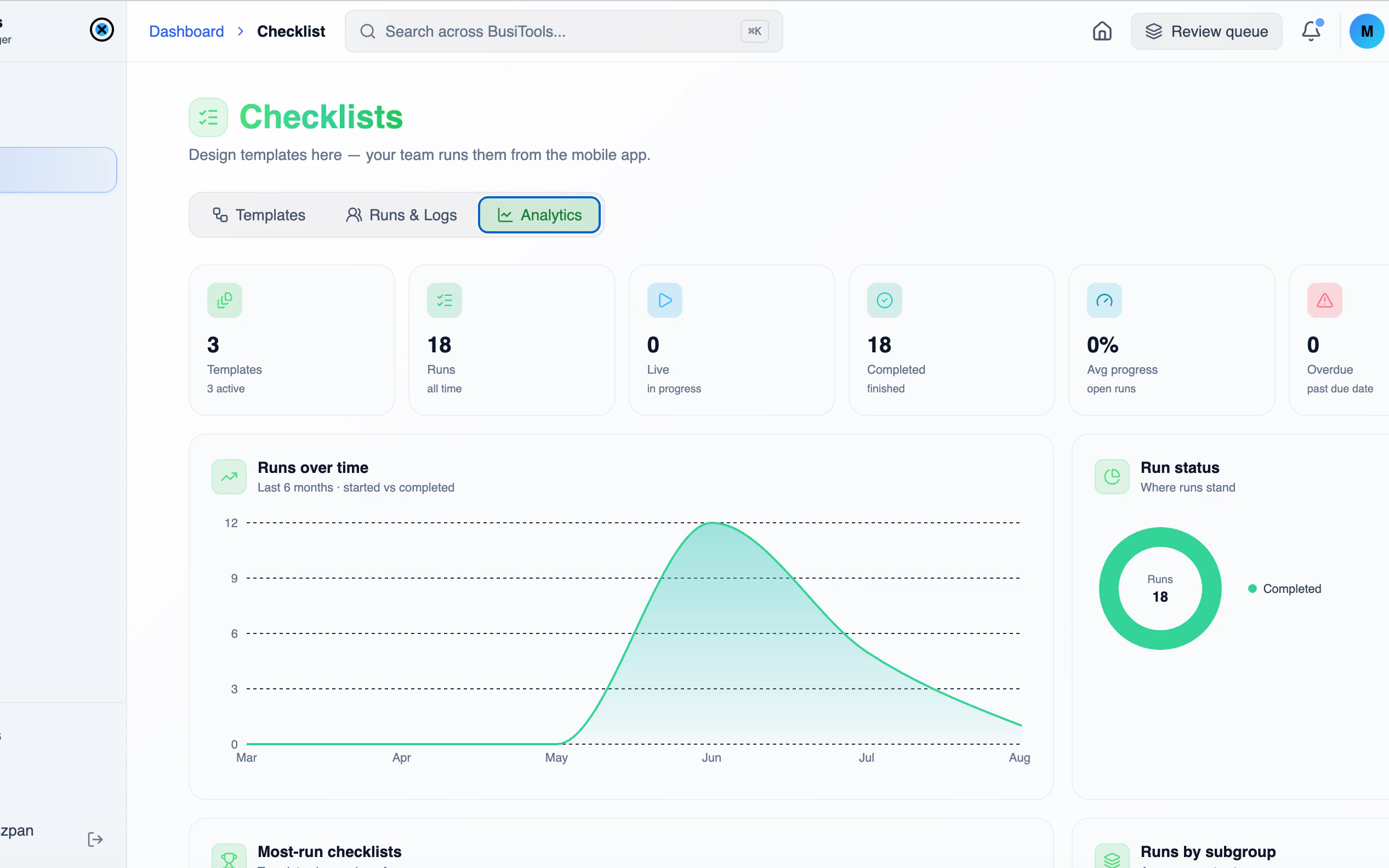
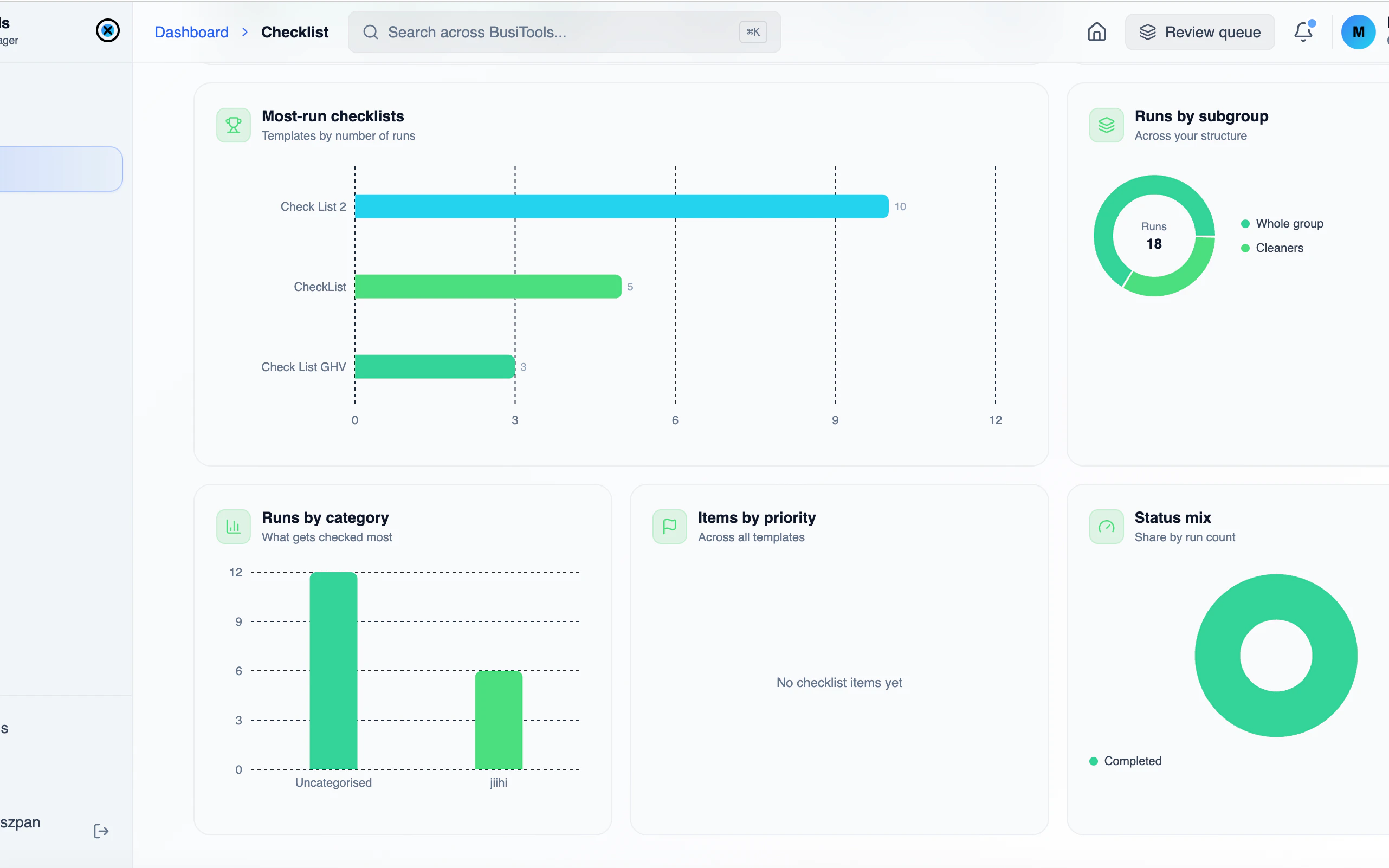
Building checklists is faster with a keyboard and a big screen. Set up your lists and items, run them, and go back through the full history — all from one page.
1Design templates, your team runs them
Every checklist as a card with its item count, type and who it's assigned to — whole group or a subgroup. Edit, delete or start a new one from here.